B1GPlayerInstallationGuide–Firestick,AndroidTV&More
Install B1G Player on a compatible Firestick, Fire TV, Android TV, Android box, smartphone or tablet.
The official installation uses Downloader code 4172090 or the approved direct download address.
Once installed, enter the username, password and server URL supplied with your active B1G IPTV subscription.
Customers using Samsung, LG, Apple, Windows or Mac devices can access the same subscription through a compatible alternative IPTV player.
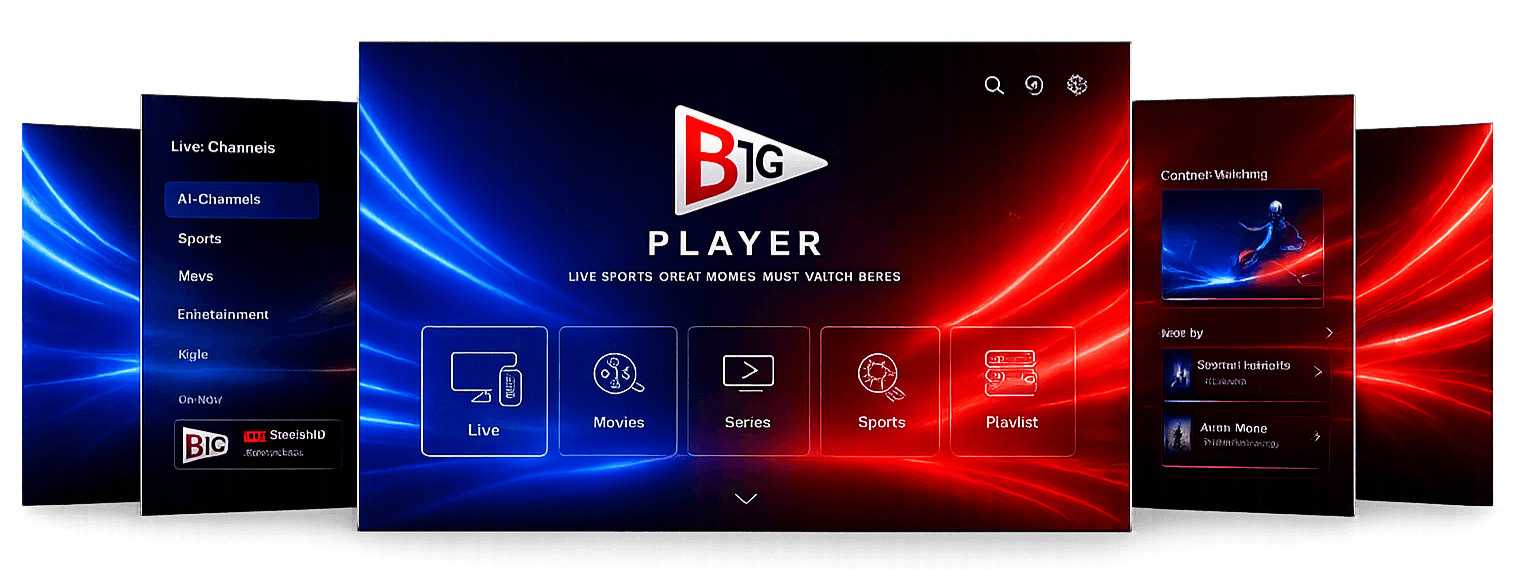
B1GPlayerInstallationGuide–Firestick,AndroidTV&More
Install B1G Player on a compatible Firestick, Fire TV, Android TV, Android box, smartphone or tablet.
The official installation uses Downloader code 4172090 or the approved direct download address.
Once installed, enter the username, password and server URL supplied with your active B1G IPTV subscription.
Customers using Samsung, LG, Apple, Windows or Mac devices can access the same subscription through a compatible alternative IPTV player.
Before You Begin
Prepare the following parameters before starting the installation:
- Active B1G IPTV subscription or trial
- Compatible device
- Stable internet connection
- Username
- Password
- Server URL
- Available device storage
- Access to installation permissions
Your account details should be entered exactly as supplied.
Do Not:
- Add spaces before or after the login
- Change capital letters
- Shorten the server URL
- Post the information publicly
- Enter the login into unknown websites
- Download unofficial copies of the app
Official B1G Player Download Information
Official Download Credentials
Use only the official code and address shown on the B1G Player website or supplied by the support team.
Installation details can change after application updates, so check the current guide if the code does not work.
Supported Devices for B1G Player
B1G Player supports a wide range of devices.
How to Install B1G Player on Firestick
Amazon Firestick remains one of the most popular devices for IPTV media player installation.
- 1
Install Downloader
From the Firestick home screen: Open Find. Select Search. Enter Downloader. Choose the Downloader app by AFTVnews. Select Download. Wait for installation. Open Downloader.
- 2
Enable Installation Permission
Open Settings → My Fire TV → Developer Options → Install Unknown Apps. Enable Downloader. If Developer Options are hidden: Open Settings. Choose My Fire TV. Open About. Highlight the device name. Press the select button several times. Return to My Fire TV. Open Developer Options.
- 3
Enter the Code
Open Downloader and enter the official Downloader Code: 4172090. Select Go. Confirm that the page displays the official B1G Player app before downloading.
- 4
Install the App
When the file has downloaded: Select Install. Wait for completion. Select Done or Open. Delete the APK file if you want to recover storage space.
- 5
Add App to Home Screen
Open your applications. Highlight B1G Player. Press the menu button. Select Move to Front.
- 6
Sign In
Open the app and enter your username, password and server URL exactly as supplied with your active subscription. Select login or add account. Allow the categories to load completely.
Entering Your Secure Login
Every active B1G IPTV subscription includes private account information.
Do not:
- Add extra spaces
- Remove http:// or https:// unless instructed
- Add an unnecessary slash
- Replace characters
- Use an expired account
Choose a clear name such as: B1G IPTV, Main TV, Living Room, or Firestick. The profile name does not affect the login.
First Account Load
The first login may take longer because the application needs to compile and load:
- Channel categories
- Movie information
- Television-series data
- Programme-guide details
- Channel logos
- Artwork
Avoid repeatedly closing the app while it is processing.
If the account contains a large library, the first load may take several minutes.
User Navigation
Using the B1G Player App
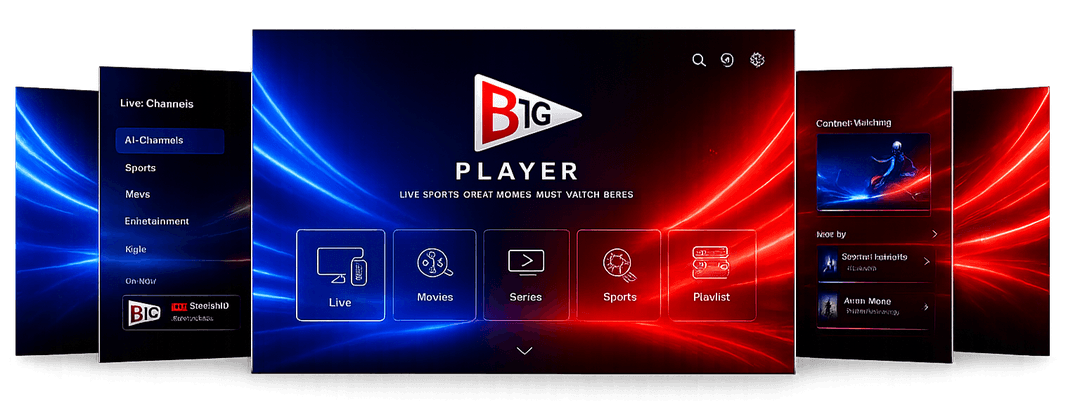
Once setup has completed, the home screen displays available content categories and navigation panels.
Live Television
Open the Live TV section and select a category.
Movies
Browse the available movie categories.
Series
Open television-series categories and choose a season or episode.
Favourites
Save regularly watched channels for quicker access.
Search
Search available channels and on-demand content.
EPG
View programme schedules where guide information is available.
Problem Solver
Common Installation Problems
Downloader Code Does Not Work
- The code is entered as 4172090
- Downloader has internet access
- The code has not changed
- The device date and time are correct
Contact support for the current download route.
App Will Not Install
- Available storage is sufficient
- Installation permissions are enabled
- Device is compatible
- APK has downloaded completely
Login Is Incorrect
- Check username, password and server URL
- Remove accidental spaces before/after
- Copy and paste details where possible
Content Does Not Load
- Try restarting the app
- Try restarting the device
- Try restarting the router
- Check that the subscription is active
- Wait longer for the first library load
Buffering Issues
- Use Ethernet instead of Wi-Fi
- Ensure strong Wi-Fi signal
- Close background downloads
- Select a lower-quality stream
- Restart the router
EPG Is Missing
- Allow time for guide details to load
- Refresh the EPG from app settings
One Channel Does Not Work
- Test another channel
- If only one source is affected, the issue may be temporary
Whole Account Does Not Work
- Check whether subscription has expired
- Contact support with your order reference
Do not post private details publicly.
Third-Party Player Requests Payment
- Alternative application activation charges are separate from B1G IPTV
Updating B1G Player
Use the approved official download method when a newer version becomes available. Before updating:
- Confirm the subscription is active.
- Keep the login details available.
- Check whether the existing app must be removed.
- Avoid unofficial update links.
- Allow the app to finish installing.
Reinstalling the App
Reinstallation may be needed after:
- Device reset
- App corruption
- Failed update
- Storage issue
- Fire TV software change
Keep your account details before deleting the app. After reinstalling, enter the same active login information unless support provides updated details.
Installation Help
Installation FAQs
The current code supplied is 4172090.
Yes. Use Downloader and the official code.
Yes, on compatible Android TV and Google TV devices.
The Android app cannot normally be installed directly. Use a compatible alternative player.
Username, password and server URL.
Alternative applications may support M3U login.
Check the login details, internet connection and account status.
That depends on the connection and device rules included with the subscription.
Yes. Contact support with the device model and application name.
Visit the B1G Player Subscription Plans page.